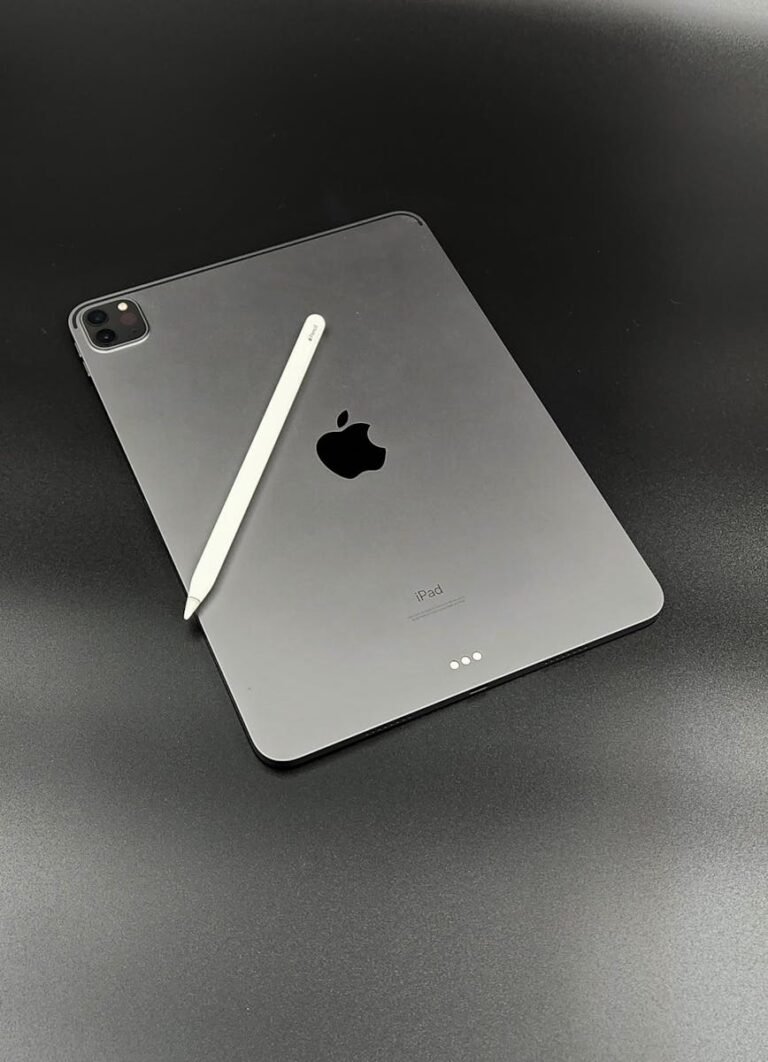
Even years after its debut, your first-generation iPad holds a special place. It’s a testament to enduring design, a pioneer that reshaped personal computing. But like any seasoned veteran, it requires a bit of care to stay in fighting form. If you're holding onto your original iPad, you know that keeping it running smoothly in an increasingly modern digital world can be a unique challenge. This comprehensive guide is designed to help you navigate common issues, optimize its performance, and keep your beloved device in optimal working order, ensuring you can continue enjoying its foundational features for as long as possible.
At a Glance: Essential Takeaways for Your First-Gen iPad
- Restart First: A simple restart resolves most minor glitches.
- Know Your Limits: The first-gen iPad can't update beyond iOS 5.1.1, impacting app compatibility and modern features.
- Manage Storage: Keep storage lean to prevent slowdowns.
- Cables Matter: Damaged charging cables are a common culprit for power issues.
- Cleanliness is Key: Periodically clean ports and screens to maintain functionality.
- Back Up Regularly: Protect your precious memories and data.
- When in Doubt, Reset: Network or general settings resets can clear stubborn software issues without losing your data.
The Foundations: General Troubleshooting for the Original iPad
Before diving into specific problems, it’s always wise to start with the basics. Many issues, surprisingly, can be resolved with these simple, universal steps. Think of them as your first aid kit for any tech hiccup.
The Power of a Simple Restart
If your iPad feels sluggish, an app is acting up, or something just doesn't seem right, a quick restart is often the magic bullet. It clears temporary files, refreshes memory, and can resolve minor software conflicts.
How to Restart:
- Press and hold the Power button (located on the top edge of the iPad).
- A "Slide to Power Off" slider will appear on the screen. Drag the slider to the right.
- Wait about 30 seconds for the iPad to completely shut down.
- Press and hold the Power button again until the Apple logo appears.
When a Restart Isn't Enough: The Force Restart
For a frozen or completely unresponsive screen, a force restart bypasses the normal shutdown process to get things moving again. This is safe and won't erase your data.
How to Force Restart (First-Gen iPad Specific):
- Simultaneously press and hold the Home button (the circular button below the screen) and the Power button (top button) for at least 10 seconds.
- Keep holding until the Apple logo appears on the screen, then release both buttons.
Understanding iOS Updates (and Limitations for Your First-Gen)
Keeping your software up to date is crucial for security and performance on most devices. However, it's vital to understand the first-generation iPad's limitations.
Important Note for First-Gen iPads: The original iPad cannot update beyond iOS 5.1.1. This means it won't be able to run many modern apps, support newer web standards, or access certain cloud services. When troubleshooting, remember that lack of software updates is a fundamental limitation, not a fixable problem for this specific model.
How to Check Your iOS Version:
- Go to Settings > General > About.
- Look for "Version" to see your current iOS. If it's anything less than 5.1.1, you can update it (if Apple's servers still support it for this device).
- To check for available updates (which, for a Gen 1, would only be to 5.1.1 if you're on an earlier version): Go to Settings > General > Software Update.
Confirming Your Internet Connection
Many iPad issues, from app crashes to slow performance, can stem from a flaky internet connection. It’s always worth a quick check.
How to Check Wi-Fi:
- Go to Settings > Wi-Fi.
- Ensure Wi-Fi is switched On.
- Confirm you are connected to your desired network and that there's a checkmark next to its name.
Tackling Screen Troubles: Frozen or Unresponsive Displays
A frozen or unresponsive screen is frustrating, making your iPad feel like a fancy brick. On a first-gen iPad, this often signals a temporary software glitch or an app conflict.
The Go-To Fix:
- Perform a Force Restart: As detailed above, press and hold the Home and Power buttons simultaneously for 10 seconds until the Apple logo appears. This is almost always the solution for a frozen screen.
If the screen remains unresponsive after a force restart, or if parts of the screen are permanently dead, it might indicate a hardware issue. At this point, given the age of the device, repair costs might outweigh its value.
Conquering Connectivity: Wi-Fi and Bluetooth Woes
The original iPad relies heavily on Wi-Fi for its internet connection and Bluetooth for accessories. When these aren't working, it severely limits functionality.
Resolving Stubborn Wi-Fi Connection Problems
Slow Wi-Fi, dropped connections, or an inability to connect at all are common complaints. Here’s a troubleshooting sequence:
- Toggle Wi-Fi On/Off:
- Go to Settings > Wi-Fi.
- Toggle the Wi-Fi switch off, wait a few seconds, then toggle it back on.
- Forget and Reconnect to the Network:
- In Settings > Wi-Fi, tap the blue arrow next to your network's name.
- Tap "Forget This Network," then confirm.
- Find your network again in the list and reconnect, entering your password. This refreshes the network settings for that specific connection.
- Check Your Router:
- Sometimes, the problem isn't your iPad but your Wi-Fi router. Try restarting your router by unplugging it from power for 30 seconds, then plugging it back in.
- Ensure your iPad is within a reasonable range of the router. Walls and other electronics can interfere with the signal.
- Check if your router's firmware is up to date (consult your router manufacturer's guide).
- Reset Network Settings:
- This is a more drastic step but can resolve deeper network configuration issues. It will erase all saved Wi-Fi passwords and cellular settings (if applicable) but won't delete your data.
- Go to Settings > General > Reset > Reset Network Settings. You'll need to re-enter all your Wi-Fi passwords afterward.
Troubleshooting Bluetooth Connections
Bluetooth allows you to connect headphones, keyboards, and other accessories. If you're having trouble pairing or maintaining a connection:
- Toggle Bluetooth On/Off:
- Go to Settings > Bluetooth.
- Turn Bluetooth off, wait a few seconds, then turn it back on.
- Unpair and Re-pair Devices:
- In Settings > Bluetooth, tap the blue arrow next to the problem device's name.
- Tap "Forget This Device," then confirm.
- Put your Bluetooth accessory back into pairing mode (refer to its manual) and attempt to re-pair it with your iPad.
- Check Device Range and Charge:
- Ensure your Bluetooth accessory is close to your iPad (typically within 30 feet or 10 meters).
- Verify that the accessory itself is charged and powered on.
Addressing App Issues: Crashes, Glitches, and Compatibility
The first-generation iPad's inability to update beyond iOS 5.1.1 is its biggest limitation regarding apps. Many modern apps simply won't run or even appear in the App Store for this device. However, for the apps that do work, you can still encounter glitches.
Fixing App Crashes and General Glitches
- Close and Reopen the App:
- Double-click the Home button to bring up the multitasking bar (recently used apps).
- Swipe the problematic app's preview upwards off the screen to force-close it.
- Press the Home button once to return to the home screen, then tap the app icon to reopen it.
- Delete and Reinstall the App:
- If an app consistently misbehaves, it might have corrupted data. Press and hold the app icon until it wiggles.
- Tap the "X" on the corner of the app icon, then tap "Delete" to confirm.
- Go to the App Store, search for the app, and reinstall it. Note: For a first-gen iPad, you might need to search specifically for older, compatible versions of apps, or check your "Purchased" tab for apps you previously owned that were compatible.
- Check for App Updates (Limited for Gen 1):
- While new app versions won't be available, older apps might have received minor bug fixes compatible with iOS 5.1.1.
- Open the App Store, tap the "Updates" tab.
- Tap "Update All" or update individual apps.
Compatibility Reminder: If you're trying to download a new app and it won't install, or if an existing app stops working after an update attempt, it's highly likely due to the iOS 5.1.1 limitation. Many developers have dropped support for such old iOS versions.
Powering On: Battery and Charging Issues
Battery life naturally degrades over time, and charging components can wear out. These are very common issues with older devices like the first-generation iPad.
Managing Battery Drain for Extended Life
While you can't restore the original battery capacity, you can optimize its usage.
- Lower Screen Brightness: The screen is one of the biggest power consumers.
- Swipe up from the bottom of the screen to reveal the Control Center (or adjust via Settings > Brightness & Wallpaper on iOS 5).
- Drag the brightness slider down.
- Disable Background App Refresh (if applicable/limited): On iOS 5, this feature might be less prominent or absent compared to newer iOS versions. However, if any app is allowed to fetch data in the background, limiting it helps.
- Check Settings > General. Look for anything related to background processes. For iOS 5, this is less about "Background App Refresh" as a system-wide setting and more about individual app settings.
- Turn Off Location Services for Unnecessary Apps: GPS usage can be a power hog.
- Go to Settings > Location Services.
- Review the list and turn off location access for apps that don't absolutely need it (e.g., games that don't use location).
- Enable Low Power Mode (Not Available on Gen 1 iPad): This feature was introduced in much later iOS versions. The first-gen iPad does not have a "Low Power Mode." Your best bet is manual optimization.
- Identify Power-Hungry Apps: While iOS 5 doesn't have the detailed battery usage reports of modern iOS, you can still observe which apps cause significant drain and use them less frequently.
Diagnosing Charging Problems
If your iPad isn't charging or charges very slowly, here's what to check:
- Inspect Cable and Adapter:
- The 30-pin dock connector cable and wall adapter are prone to wear and tear.
- Look for fraying, bent pins, or damage on both the cable and the adapter.
- Try a different, known-good 30-pin cable and adapter. Using genuine or MFi-certified accessories is always recommended.
- Clean the Charging Port:
- Over time, lint, dust, and debris can accumulate in the 30-pin charging port, preventing a proper connection.
- Carefully use a soft, non-metallic brush (like a dry toothbrush or a specific port cleaning brush) to gently dislodge any foreign material. Be very gentle to avoid damaging the pins.
- Try a Different Power Source:
- Plug the iPad into a different wall outlet, or try charging it via a computer's USB port (though this might be slower).
Advanced: Battery Calibration
While controversial among experts, some believe that occasionally calibrating your battery can help the iPad report its charge more accurately.
How to Calibrate (Advanced):
- Use your iPad until the battery completely drains and it shuts off automatically.
- Charge it uninterrupted to 100%, and then leave it plugged in for an additional two hours (even after it shows 100%).
- Once fully charged, use your iPad normally until it completely shuts off again from battery drain.
- Repeat this cycle every few months.
Boosting Performance and Managing Storage
The first-generation iPad, with its older processor and limited RAM, will inherently feel slower than modern devices. However, you can still take steps to optimize its performance within its capabilities.
Strategies for a Slow iPad
- Close Unused Apps: Although iOS is good at managing background apps, too many open applications can consume resources.
- Double-click the Home button to open the multitasking bar.
- Swipe up on any apps you're not actively using to close them.
- Free Up Storage Space: A full storage drive can severely impact performance.
- Go to Settings > General > Usage (on iOS 5, this is where storage information is found).
- Review the list of apps and their data usage. Identify large offenders like old photos, videos, or unused apps.
- To delete apps: Press and hold the app icon until it wiggles, then tap the "X".
- To manage photos/videos: Connect your iPad to a computer and offload media, or delete directly from the Photos app.
- Clear Safari Cache and Browsing Data: This can speed up web browsing.
- Go to Settings > Safari.
- Tap "Clear History" and "Clear Cookies and Data."
- Reduce Motion and Transparency Effects (Limited on Gen 1): Older iOS versions might not have as many visual effects as newer ones. However, if you find any "Reduce Motion" settings, enabling them can save processing power.
- On iOS 5, navigate to Settings > General > Accessibility. Look for "Reduce Motion" and toggle it on if available.
- Restart Your iPad Regularly: As mentioned earlier, a simple restart every few days can keep things fresh.
Checking and Managing Storage Space
Understanding what's consuming your storage is the first step to freeing it up.
How to Check Storage:
- Go to Settings > General > Usage.
- You'll see a breakdown of used and available storage, along with a list of apps ordered by their storage consumption.
- "64GB Storage" Perspective: For a first-gen iPad, 64GB was a generous amount. However, for modern content, it can fill up quickly with high-resolution photos, long videos, and even multiple older apps. For basic browsing, email, and light gaming with compatible apps, 64GB is still quite usable, but it’s limited for extensive media libraries.
Getting Started: Initial Setup & Activation Concerns
Even if you're not setting up a brand-new device, understanding the initial setup process can help if you ever need to restore your iPad or troubleshoot activation issues.
The Initial Activation Process
When you first turn on a factory-reset iPad, you’ll be guided through a series of steps:
- Select Language and Country/Region: Tap your preferred options.
- Connect to Wi-Fi: Choose a network and enter the password. For a first-gen iPad, Wi-Fi is your primary connection method.
- Location Services: Decide whether to enable or disable Location Services.
- Set Up as New or Restore: You'll be given the option to set up the iPad as a new device or restore from an iCloud or iTunes backup.
- Sign in with Apple ID: Enter your Apple ID and password. If you don't have one, you can create one.
- Terms and Conditions: Agree to Apple's terms.
- Siri (if available/limited): Set up Siri, if supported on your iOS 5.1.1 version and hardware.
- Diagnostics: Choose whether to send diagnostic data to Apple.
- Welcome: You'll see a welcome screen, and then you're ready to use your iPad.
What to Do If Activation Fails
Activation issues can be frustrating, especially if you're restoring an older device.
- Check Internet Connection: A stable Wi-Fi connection is absolutely essential for activation. Try connecting to a different Wi-Fi network if possible.
- Restart Your iPad: Sometimes, a simple restart clears temporary network glitches that prevent activation.
- Update iOS (if possible): While the first-gen iPad is limited to iOS 5.1.1, ensure it's on the highest possible version. If you're on an even older version, connecting to a computer with iTunes (an older version compatible with iOS 5) might be required for the update or activation.
- Contact Apple Support: If all else fails, there might be an issue with Apple's activation servers or a specific problem with your device. Contacting Apple Support is the next step. Be aware that support for such an old device might be limited.
Advanced Solutions: When Standard Fixes Aren't Enough
Sometimes, the basic troubleshooting steps aren't enough to solve persistent issues. These advanced solutions delve deeper but should be used with caution.
Reset All Settings (Without Erasing Data)
This option resets all your iPad's settings (network, keyboard dictionary, home screen layout, location privacy, etc.) to their factory defaults, but it does not erase any of your data, apps, or media. It's great for clearing out conflicting settings.
How to Reset All Settings:
- Go to Settings > General > Reset.
- Tap Reset All Settings. You will need to confirm with your passcode.
The Ultimate Reset: Recovery Mode and Restore
For severe software issues, constant crashes, or if your iPad won't boot properly, a full restore in Recovery Mode is the most powerful solution. WARNING: This will erase all data on your iPad. Make sure you have a recent backup.
How to Restore in Recovery Mode:
- Ensure you have iTunes installed on a computer (you'll likely need an older version of iTunes compatible with iOS 5.1.1 and the original iPad).
- Turn off your iPad.
- Connect your iPad to the computer using its 30-pin USB cable.
- While holding the Home button, connect the other end of the USB cable to your iPad.
- Keep holding the Home button until you see the "Connect to iTunes" screen on your iPad.
- iTunes on your computer will detect an iPad in recovery mode and offer to "Restore" or "Update" it. Choose Restore.
- iTunes will download and reinstall the latest compatible iOS (iOS 5.1.1) for your device.
Reinstall iOS (without Recovery Mode): If your iPad is still functional but experiencing software glitches, you can connect it to iTunes and choose to restore it directly. This also reinstalls iOS and erases data, but avoids the recovery mode steps if your device can still boot.
Seeking Professional Help: Contact Apple Support
For persistent hardware problems, issues not resolved by any troubleshooting steps, or if you're uncomfortable performing advanced resets, contacting Apple Support is the final option. Be prepared that support for a first-generation iPad might be limited to troubleshooting advice, as parts or service might no longer be readily available.
Prevention and Security: Keeping Your iPad Safe and Sound
Maintaining your first-gen iPad goes beyond fixing problems; it's about proactive care and safeguarding your digital life.
Essential Data Backup Strategies
Your iPad holds memories, documents, and important settings. Don't risk losing them!
- iCloud Backup (Limited for Gen 1):
- The first-generation iPad with iOS 5.1.1 supports iCloud, but its features are more basic than modern iCloud.
- Go to Settings > iCloud > Storage & Backup.
- Ensure "iCloud Backup" is toggled on, then tap "Back Up Now." Ensure you have enough iCloud storage space.
- iTunes Backup (Recommended for Gen 1):
- This is often the most reliable backup method for older devices.
- Connect your iPad to a computer with iTunes installed (an older version compatible with iOS 5.1.1).
- In iTunes, select your iPad when it appears in the sidebar or top menu.
- Under the "Summary" tab, click "Back Up Now." Choose to encrypt your backup for extra security (and to save passwords and health data, though less relevant for Gen 1).
Physical Protection for Longevity
The original iPad's build quality was excellent, but it's not indestructible.
- Use a Protective Case: A good case can absorb impacts from drops and protect the aluminum back from scratches.
- Install a Screen Protector: While they can affect screen clarity slightly, a screen protector guards against scratches and minor impacts.
Digital Security Best Practices
Even an older device benefits from good security habits.
- Strong Passcode: Always use a strong, alphanumeric passcode. Go to Settings > Passcode Lock.
- Two-Factor Authentication (Limited/Not for Device Login): While you can't enable two-factor authentication (2FA) for logging into the device itself on iOS 5.1.1, ensure your Apple ID account has 2FA enabled to protect your iCloud and App Store purchases. This is managed through appleid.apple.com.
- Download Apps from the App Store Only: This helps prevent malware. Avoid installing apps from untrusted sources.
- Keep Software Updated (to iOS 5.1.1): As discussed, ensure your iPad is on its maximum compatible iOS version for any potential security patches that were released.
Finding Your iPad
Turn on Find My iPad to locate a lost or stolen device.
How to Enable Find My iPad:
- Go to Settings > iCloud.
- Scroll down and ensure "Find My iPad" is toggled on.
- You can then use the Find My iPhone app on another Apple device or iCloud.com to locate, lock, or erase your iPad.
Quick Answers: Essential Information for Your First-Gen iPad
Let's address some common questions specifically relevant to your first-generation iPad. For more in-depth knowledge on the device itself, you can Explore the iPad 1st generation.
How to Identify My iPad Generation & Specs:
Go to Settings > General > About. Look for "Model Name" (will likely just say "iPad"), "Serial Number," and "Version" (should be 5.1.1 if fully updated).
Where is the Serial Number Located?
The serial number is typically engraved on the back of the device near the bottom. You can also find it in Settings > General > About.
Can My First-Gen iPad Make Emergency Calls (like 911)?
The first-generation iPad is Wi-Fi only and does not have a cellular radio for direct phone calls. However, you can make emergency calls via Wi-Fi using VoIP (Voice over IP) apps like FaceTime (if compatible) or Skype, provided you have a working internet connection.
Can I Watch Movies Offline?
Yes, many older streaming apps (if still compatible with iOS 5.1.1) or video players that supported direct downloads of media files would allow offline viewing. You'd typically need to download the content beforehand through a compatible app.
How Do I Clear Safari History and Website Data?
Go to Settings > Safari > Clear History and Clear Cookies and Data.
How Do I Silence My iPad?
The first-generation iPad has a physical Ring/Silent switch (or Orientation Lock switch, depending on settings) on the side, near the volume buttons. You can also use the volume buttons on the side, or adjust sounds in Settings > Sounds.
Is the First-Gen iPad Water Resistant?
No. The first-generation iPad is not waterproof or water resistant. It can withstand minor splashes, but not submersion or heavy rain. Any significant liquid exposure can cause irreparable damage.
How Do I Turn Off Private Browsing in Safari?
In Safari, tap the tabs icon (two overlapping squares) in the top right. If you see a "Private" button at the bottom, tap it to exit private browsing mode, then tap "Done."
How Do I Find a Saved Wi-Fi Password on My iPad?
Unfortunately, iOS 5.1.1 does not provide a direct way to view saved Wi-Fi passwords within the device's settings. This feature was added in much later iOS versions. You would typically need to check your router's settings or a connected computer for the password.
What is Apple's Drawing App (Compatible with Gen 1)?
The built-in "Notes" app on the first-gen iPad allows for basic typing, but its advanced drawing features were introduced in later iOS versions. For drawing, you would need to find older third-party drawing apps that were compatible with iOS 5.1.1.
How Do I Adjust Volume?
Use the physical volume buttons located on the side of your iPad.
The Enduring Legacy: Keeping Your Pioneer Alive
Maintaining and troubleshooting your first-generation iPad is a bit like tending to a classic car – it requires a particular understanding of its design and limitations, but the effort is often rewarding. While it can't compete with the raw power or app compatibility of today's iPads, its elegant simplicity and robust build still make it a capable device for specific tasks. By following these steps, you can extend the life of your original iPad, keeping it a functional and cherished piece of Apple history for years to come.